


Tables
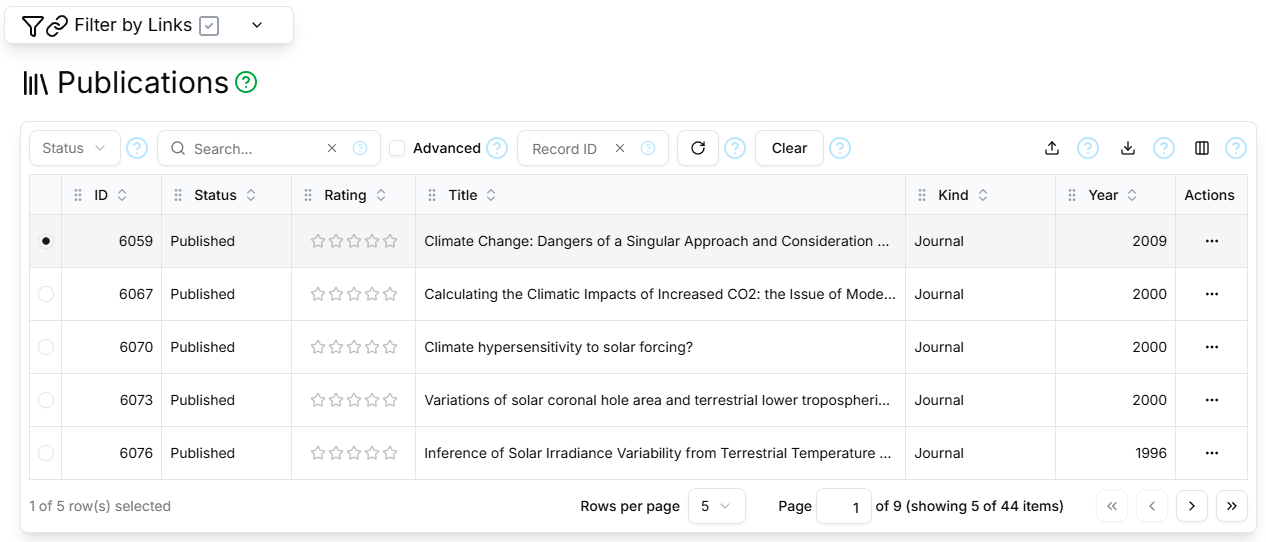
Header
The table header provides list filtering capabilities, export, import and column selection features.
Filter
The table filter is tailored to the kind of record displayed in the table. The image above shows the filter for trackable records such as Journals and Publishers, and linkable records such as Claims, Declarations, Persons, Publications and Quotations. The filter acts in conjunction with the Master Filter, if that is active. The table filter includes:
Status selector
Only records with the selected status (Draft, Published, Suspended or Deleted) will be displayed. This component is only visible to authenticated (signed-in) users, as unauthenticated users are only permitted to see Published records.
Text Search Input
Filters the list to show only records containing the specified text. This performs a case-insensitive match against all text fields, only matching whole words unless 'Advanced' is checked. The Advanced ('Boolean mode') text search syntax supports more powerful text searching. See here for full details. The value can be cleared by clicking the built-in Clear button or typing the Escape key.
Record ID input
Filters the list to show only the one record with the specified identifier. While this field is set, other filter settings are preserved but unused. This capability is also used internally by the application for navigation. The value can be cleared by clicking the built-in Clear button or typing theEscape key.
Refresh button
Re-queries the database to retrieve the latest results. This can be useful if frequent updates are in progress.
Clear button
Clears all filter settings (apart from the master filters at the top of the page).
Export/Download
Exports the list to a downloadable file. Various formats are supported. Not all options are available for all formats.
- Format: CSV, HTML, PDF (all record types) and RIS (Publications only)
- Include: Table and/or Details
- Pages: Current or All
- Paper Size: A4 or A3
- Orientation: Portrait or Landscape
- Font Size: 8 - 16 Pt
Import
Publications support import/upload from a RIS-format text file.
Column Selector
Selects the columns to display in the table. Some columns are common to all tracked record types, such as ID, Status, Rating, Created, Created By, Updated, Updated By, and other columns are specific to the type of record displayed by the table. By default, not all available columns are displayed, as this can make the table too wide for easy use.
Column Headers
Each column selected for display has its own column header, which supports various operations:
- Ordering - columns can be reordered by dragging and dropping the grab handle to a new location in the table header
- Sizing - columns can be reordered by dragging the flyover resize handle at the right of the column header
- Sorting - the table can be sorted on a given column by clicking theup-down chevron to the right of that column's header text. The icon changes to reflect whether the column is unsorted, sorted ascending or sorted descending. Clicking repeatedly cycles between the three sort options. Use Shift+Click to sort on multiple columns.
Body
The table body shows one record per row, with the cell contents formatted for legibility.
Record Selector
The first column shows a radio button for each row. Clicking the radio button selects the corresponding record. The selected record is displayed in full in the Details Section below the table.
Columns
All tables (apart from Log) support the following columns in addition to their record-type-specific columns:
| Field | Type | Default Visible | Description |
|---|---|---|---|
| Select | Yes/No | Yes | Radio button to select the record in that row |
| ID | Digits | Yes | The unique record identifier |
| Status | Reference | Yes | The record status |
| Rating | 1..5 | Varies | The record star rating |
| Created | Date/time | No | The date/time at which the record was created |
| Created By | Reference | No | The User who created the record |
| Updated | Date/time | No | The date/time at which the record was updated |
| Updated By | Reference | No | The User who last updated the record |
| Actions | Menu | Yes | A popup menu with commands to show the Comments or Log for the record |
Actions
The last column displays a popup menu that allows you to view the comments or log for the record.
Paginator

The table is paginated for reasons of performance and ease of use.
Page Size
Specifies how many records to show per page: 5, 10, 20, 50 or 100.
Page Number
Show the current page number. By typing in this field you can navigate to a specific page in the table.
First/Previous/Next/Last Buttons
Navigates to the corresponding page in the table.